Showing posts with label Technology. Show all posts

Thursday, May 19, 2016

How to Create New Partition on a Windows 7 Hard Disk

 Hello guy, I will show you on how to create new partition is sound really difficult, but now I will show you the easy way to create a new partition on your disk, so please follow my steps:

  1. Open the Disk Management console by typing diskmgmt.msc at an elevated command prompt.

    partition1.jpg
  2. In Disk Management’s Graphical view, right-click an unallocated or free area, and then click New Simple Volume. This starts the New Simple Volume Wizard. (Note: If you need to create unallocated space.

    partition2.jpg
  3. Read the Welcome page and then click Next.
  4. The Specify Volume Size page specifies the minimum and maximum size for the volume in megabytes and lets you size the volume within these limits. Size the partition in megabytes using the Simple Volume Size field and then click Next.

How to Partition a Hard Drive in Windows 10

Now I really want to share knowledge to everyone about how to partition a Hard Drive in windows.  
It sounds very difficult for users to partition hard drive, but don't worry, Windows 10 Disk Management tool and third-party free partition software like AOMEI Partition Assistant Standard will help you partition hard drive easily and safely.

Before you do

If the hard drive of your Windows 10 is MBR, please make sure how many partitions have been on hard drive? Due to MBR disk only supports maximum 3 primary partitions plus 1 extended partition or 4 primary partitions. If the number of partitions has reached the limitation, please learn how to convert primary partition to logical. However if your disk is GPT, there is no limitation for the number of partitions.
Method 1: Partition Hard Drive in Windows 10 with Disk Management Tool
Disk Management is a tool built in all Windows versions to manage hard disk partitions, such as create, delete and format partitions, change drive letter, shrink volume, extend volume and perform other disk-related tasks.

Step 1: To partition Windows 10 hard drive, let's get started from opening Disk Management Tool in Windows 10. The easiest way is to right click Start Menu and select "Disk Management".


Open Disk Management Windows 10


Thursday, May 5, 2016

How to Pick a Domain Name for a Blog

http://honeylove44.blogspot.com/

Sometimes your name just comes to you instantly, sometimes you would like to spend a while thinking and brainstorming the options. Spend some time researching the chances to settle on the name that fits your project well. People say that all the great domain names ar gone but that is straightforward not true.

Here are the 10 main approaches you can use to settle on a memorable domain name for your blog. Be open to all of these methods and check out to search out a balance between a catchy, brandable and descriptive name.

Wednesday, May 4, 2016

12 Easy Steps To Secure Your Website From Hackers

Making your website live is like unlocking the door to your premises with your office and safe open: Most of the people who visit your physical building will never even know that all of your data is there to discover just by walking in. Occasionally you will find someone with malicious intent who will walk in and steal your data. That is why you have locks on doors and safes.

Your website is just the same, except that you will never see anyone come in unless you have protection systems in place. Electronic thieves are invisible and fast., searching for your website for details of customers’ accounts, especially for their credit card information. You have a legal obligation to protect this data from theft and to report security breaches that occur.
Theft is not the only thing on the mind of a hacker: Sheer destruction is a major motivator. Hackers may want to destroy all your records, put a sick message on your customers’ screens or just destroy your reputation.

You can never undo the damage done by a hacker, you can take steps to prevent it. Even the most basic protection will discourage many hackers enough to make them go looking for easier pickings elsewhere. Thieves are likelier to steal from people who leave their doors unlocked.
You may not think your site has anything worth being hacked for, but websites are compromised all the time. The majority of website security breaches are not to steal your data or deface your website, but instead attempts to use your server as an email relay for spam, or to setup a temporary web server, normally to serve files of an illegal nature.

Hacking is regularly performed by automated scripts written to scour the Internet in an attempt to exploit known website security issues in software. Here are our top 10 tips to help keep you and your site safe online.
1. Stay updated: You need to stay up to date with hacking threats. If you have at least a basic knowledge of what is possible then you can protect your website against it. Follow updates at a tech site such as The Hacker News. Use the information you gain to put fresh precautions in place when necessary.
2. Toughen up access control: The admin level of your website is an easy way into everything you do not want a hacker to see. Enforce user names and passwords that can not be guessed. Change the default database prefix from “wp6” to something random and harder to guess. Limit the number of login attempts within a certain time, even with password resets, because email accounts can be hacked as well. Never send login details by email, in case an unauthorized user has gained access to the account.
3. Update everything: Updates cost software companies money. They only do it when necessary, yet many people who use the software do not install updates immediately. If the reason behind the update is a security vulnerability, delaying an update exposes you to attack in the interim period. Hackers can scan thousands of websites an hour looking for vulnerabilities that will allow them to break in. They network like crazy, so if one hacker knows how to get into a program then hundreds of hackers will know as well.

How to Partition a Hard Drive in Windows 8 and 8.1

 Hi guy, this text can really help you to create partition Hard Drive in windows 8 and 8.1

Why we need to partition a Windows 8 or 8.1 hard drive? On the one hand, it is for data safety - if your Windows 8/8.1 hard drive only has one partition including Windows, boot files, programs, documents, photos and so on, when there is something wrong with your system, all data on the partition may be lost. On the other, hard drive partitioning can make full use of disk space and will be more convenient for us to assort different kinds of files and documents, and make our computer run smoothly.
1. Only one partition on the hard drive.
If there is only one partition on the hard drive, you need to divide more partitions for difference uses and data safety. You may assign one as the system partition and the others as data partitions. This could improve the performance of your computer and make you manage your files in a more efficient way.
2. A new hard drive.
Imagine that you just purchased a new hard drive, There is no doubt that the first thing you need to do is to create several individual partitions and store different data. Partitioning in Windows 8 or 8.1 must be easy to achieve with the partitiion software. That'll guarantee you the good perforemance of your computer in the future. Also, for further use, the conversion between FAT32 and NTFS must be completely safe.

How to Install Computer Hardware


http://honeylove44.blogspot.com/

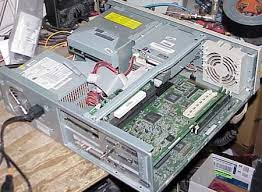
Installing computer hardware may seem to be a difficult task but once you know what to do it will be very easy process. Everyone can do it with a little bit of patience and knowledge. Follow the steps listed in this hub and you will be well on your way to upgrading your own computer, replacing faulty components and even building your own computer! Components covered in this hub are the processor, RAM, graphics card and a basic PCI card.
http://honeylove44.blogspot.com/
Before we start a few things to keep in mind are to never stand on carpet in sock feet while working on a computer as to reduce the risk of static shock, of course don't have any liquids nearby any open computer case. Also don't force anything when installing any components, if components seem like they are taking excessive force to fit make sure you're installing them in the right slot and that all necessary pins/connectors are lined up.


What you'll need

1.) a non-magnetic star screwdriver
2.) an anti-static wrist strap, if you don't have one of these just remember to touch the chassis or computer frame now and again to keep static electricity drained from your body.
The first order of business is to open up your computer case. Most cases will open up by way of a side panel. To release this panel you'll have to unfasten two screws found at the back of your computer and with a push the side panel should pop right off. Be sure to have unplugged your computer from any power sources before opening it up.

Sunday, May 1, 2016

How to fix Windows 10 problems with System Restore

 It sound so hard to FIX WINDOWS 10 PROBLEMS, but when you start -you will know that you can done it.
Windows 10 is pretty robust when it comes to recovering from problems that might stop it from working properly, but there may come a time when it needs some manual intervention.
Microsoft’s latest operating system has a similar set of recovery tools as easier versions for this, but not all work in the way you’d expect and there are some new options at your disposal, too.
So while we hope you never need any of the advice given here, it’s worth familiarising yourself with Windows 10’s various recovery options should the need to use one of them ever arise.

System Restore

A with earlier versions of Windows, System Restore allows you to ‘rewind’ your Windows installation to an earlier working state, without affecting your documents. This is possible because Windows automatically saves Restore Points when something significant happens, such as installing a Windows Update or a new application  the idea being that if it goes wrong, you can return to the last Restore Point (or an even earlier one) to get things going again.

1. Open System Restore

Search for system restore in the Windows 10 Search box and select Create a restore point from the list of results. When the System Properties dialog box appears, click the System Protection tab and then click the Configure button.

1. Open System Restore

2. Enable System Restore

Click to enable Turn on system protection and then use the Max Usage slider to determine how much of your hard drive to use to store Restore Points — 5% to 10% is usually sufficient — and click OK. If you ever need to create a restore Point manually (just before you start messing with any system settings, for example), return to this dialog box and click the Create… button, otherwise Windows 10 will create them automatically.


17 Tips To Increase Computer Speed

Nothing slows business down more than a sluggish computer. Of course, Apple fans will be pleased to note that there are not many tools for them here because. . .well, their machines are often invincible.
I use many of these ideas to keep my machines running lean and mean in the fast lane. If your PC is wasting what little precious time you have, these tips and websites will help you to make it faster.

Here simple ways to increase computer speed:

1) Use Microsoft Fix It

Microsoft Fix It is a free tool from Microsoft that will help users of Windows 7 or earlier to clean up and perform many simple maintenance problems.

2) Reduce Items that Run on Startup

If your computer takes a long time to start up, the first thing you want to do is see everything it starts when you hit the power button.
To do this, click on the Windows button, click “run,” and then type “msconfig” into the box. Click on the “Startup” tab. Some things you want to leave alone. For example, your Antivirus. Others, such as Adobe Acrobat or Google Toolbar Notifier, you don’t need to startup with your computer.

3) Remove Programs No Longer In Use

Along with preventing every app on your computer from starting with Windows, you should also review which programs you no longer need and remove them.
Access the uninstaller tool from your control panel and use that to uninstall programs you don’t use. I regularly do this, of course, as a software reviewer.


How to setup microsoft InfoPath form to an Access database


Microsoft Office InfoPath is the part of Microsoft Office. With Microsoft Office InfoPath, you can design a form that is connected to a Microsoft Office Access database. By using these two programs together, you get all of the data collection advantages of InfoPath along with the data storage advantages of Access.
InfoPath advantages include forms that can be filled out while users are offline, a rich set of controls that make it easy to design and fill out forms, and data validation rules that are automatically imported when the form is connected to a database.

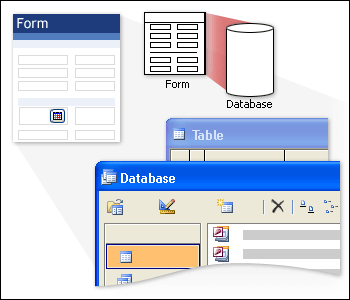
An InfoPath form connected to an Access database

When you connect an InfoPath form to an Access database, you can choose whether you want to set up the database as the form's main data source or secondary data source. If you want to edit and add records to the database by filling out fields in the InfoPath form, you should set up the database as the form's main data source.
This article explains how to set up a database as the main data source for a form by doing the following:
  • Connecting the form to the database
  • Laying out the form
  • Customizing the submit options for the form
  • Querying and submitting data while filling out the form

Setup requirements

To complete the lessons in this article, you need to have Access 2003 and the Northwind sample database for Access installed on your computer. By default, the sample database is installed in the following location: <drive>:\Program Files\Microsoft Office\OFFICE11\SAMPLES.
Note: If you cannot locate the Northwind sample database on your computer, you might need to install it. To do so, start Access, point to Sample Databases on the Help menu, and then click Northwind Sample Database.

How to create a SharePoint Workspace

Before create a SharePoint workspace, you need to download list and library content from a SharePoint site to your computer. This content is then automatically synchronized with the site whenever you’re on your network. This means updates you make in your local copy are sent to the site, and updates that occur on the site are sent to your local copy.
On a basic level, creating a SharePoint workspace requires very little thinking. You can just go to the site, select the option to Sync to SharePoint Workspace, and then click OK. This is certainly efficient, and you may never need to consider other options. Other options mainly add efficiency, both in terms of creating the workspace, and in keeping it synchronized.
We’ll look at several different ways to create a SharePoint workspace, and explain the benefits of choosing each option.

Taking a whole site offline via Web browser

This is the “grab and go” option, which might be perfectly suitable for your needs most of the time. By taking the whole site, you can be sure you won’t leave behind any content you meant to take with you. And perhaps you just don’t mind downloading and synchronizing more content than you’ll need. But you might consider other options if you know that the site contains particularly large lists or libraries that you don’t intend to work with, and which you’d rather not have to take the time to download to keep synchronized.
1. Go to the SharePoint site in a Web browser.
2. Click Site Actions, and then click Sync to SharePoint Workspace.
3. In the Sync to SharePoint Workspace dialog box, click OK.


How to Setup a Custom Domain on WordPress.com

Now that you’ve got a nice blog on WordPress.com, why not get your own domain to brand your site?  Here’s how you can easily register a new domain or move your existing domain to your WordPress site.
By default, your free WordPress address is yourblog’sname.wordpress.com.  But whether this is a personal or a company blog, it can be nice to have your own domain to really brand your site and make it your own.  Or, if you already have another website and want to use WordPress as a blog for it, you could even add blog.yoursite.com or any other subdomain.
Adding a domain to your WordPress.com is a paid upgrade; registering and mapping a new domain to your account costs  a year, while mapping a domain you already own to your WordPress blog costs a year.
Login to your blog’s dashboard, click the arrow beside Upgrades in the sidebar, and select Domains.

image

Enter the domain or subdomain you want to add to your site in the text box, and click Add domain to blog.

sshot-2010-05-25-[22-48-45]
If you entered a new domain you want to register, WordPress will make sure the domain is available and then present you a registration form to register the domain.  Enter your information, and then click Register Domain.


How To Set Up a Custom Domain in Blogger

To make your blogger become more searchable on google-engine, you have to have your Own Domain.
In order to link your domain to your blog, you need to take several simple steps:
1. Set up your domain in your Blogger account.
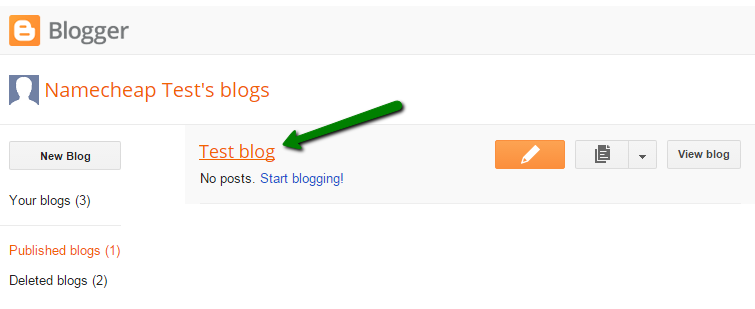
  • Once you log into your Blogger account, click on the name of your blog you wish to map a domain to:
blog1.png

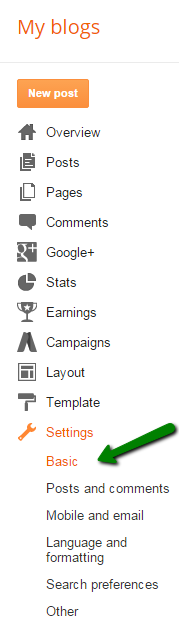
  • Then click on the Settings tab and choose Basic
     
blog2.png

  • In the Publishing section, click on the link '+ Set up a third-party URL for your blog' to add a custom domain:

Saturday, April 30, 2016

18 Ways to Boost Your Wi-Fi Signal and Speed it up

 We’ve all been there: You're watching the latest season of Orange is the New Black on Netflix when, all of a sudden, the video jerks to a stop and the endless buffering begins. It's frustrating when your network slows down (or shuts down completely), but there are a few tricks you can use boost your Wi-Fi signal. Here are a few of them.

1. Do not hide your router


Most people hide their routers because they’re unsightly or in the way, but placing a router in a closet or in a cabinet is a one-way ticket to slow Wi-Fi: Walls and doors can degrade and absorb signal strength. Find a central location in your home and put your router on a table or bookshelf. Because some routers are designed to project a Wi-Fi signal slightly downward, keeping it higher off the ground will evenly distribute a Wi-Fi signal throughout your home.

2. Stay away from appliances and metal objects


Microwaves, cordless telephones, flourescent lights, and even other routers in your neighbor’s home or apartment may interfere with your Wi-Fi signal. To reduce interference, place your router away from household appliances and set it to a different wireless channel and frequency. Using online tools, Acrylic Wi-Fi for Windows and AirGrab Wi-Fi Radar for Mac, for example, can help you find the right wireless channel with the least amount of interference. If you want an easier fix, most routers have an automatic option to find the best channel for your location.
You should also avoid placing your router near metal objects, which can absorb signal strength.


How To Lock Down Wireless Network

To prevent your wireless network form other hackers, you need to LOCK IT DOWN. If you operate a wireless network for your home or business, it's important to protect it against opportunistic hackers seeking to steal your data or hijack your Wi-Fi for their own nefarious purposes. We spoke to Steven Andrés, CTO of security consulting firm Special Ops Security, to learn about the best ways to lock down your Wi-Fi. To get started, you'll need to log in to your router's administrative console by typing the router's IP address into your Web browser's address bar. Most routers use a common address like 192.168.1.1, but alternatives like 192.168.0.1 and 192.168.2.1 are also common. Check the manual that came with your router to determine the correct IP address; if you've lost your manual, you can usually find the appropriate IP address on the manufacturer's website.

Change Your Passwords

The first step in securing your network is simple: Change your passwords! Default router passwords like "admin" are seductively simple to remember, but that means they're equally simple for a hacker to guess; there's even a public database containing default login credentials for more than 450 networking equipment vendors. Though no password is foolproof, you can build a better password by combining numbers and letters into a complex and unique string. Remember to change both your Wi-Fi password (the string that guests enter to access your network) and your router administrator password (the one you enter to log in to the administration console the two may sometimes be the same). Andrés suggests that you change your passwords to something unique no pet names and then write them down on a piece of paper and tape them to your router for safekeeping.

How to Change WiFi Network’s Password and Name step by step

http://honeylove44.blogspot.com/
Your Wi-Fi router comes with a default network name and password, and both are often printed on the router itself. But you can change the name and password to anything you want in just a few clicks.
Changing your default network name gives you a chance to use something more personalized than “NETGEAR30” or “Linksys.”  I recommend you to use a password that’s easier to remember.

Find Your Router’s IP Address

 This setting is controlled on your wireless router, so you’ll need to change it on your router.
Typically, this will involve accessing the router’s web interface in a web browser and changing it there. But this depends on your router. For example, if you have an Apple Airport router, you can use the “Airport Utility” on your Mac to change its settings. Some router manufacturers offer smartphone apps for changing settings, while some more expensive routers are even beginning to include built-in touchscreens for this.
But all this doesn’t really matter for most people. Typically, you’ll need to access the web interface. You could look up instructions specific to your model of router online, but the below instructions will work for the vast majority of routers.
(You should probably do this from a computer. Many routers don’t have a mobile-optimized website that will work well on your smartphone.)
On a Windows PC, the quickest way to find this information is in the Command Prompt. To open it, press Windows Key + R, type “cmd” without the quotes, and press Enter.

http://honeylove44.blogspot.com/

Type “ipconfig” without the quotes into the Command Prompt window and press Enter. You’ll see the router’s IP address displayed to the right of “Default Gateway” under the network connection you’re currently using.
This works on Windows 7, 8, 8.1, 10, and even older versions of Windows.


On a Mac, click the Apple menu and select “System Preferences”. Click the “Network” icon, select your Wi-Fi or wired Ethernet conneciton, and click “Advanced”.

http://honeylove44.blogspot.com/

Click over to the “TCP/IP” tab and look for the router’s address to the right of “Router”.

http://honeylove44.blogspot.com/

Access the Web Interface

Take that IP address you found earlier, type it into your web browser’s address bar, and press Enter.


You’ll be asked to enter the router’s username and password to log in. If you’ve changed the username and password to custom ones, enter your custom login information.
If you haven’t, you’ll need to use the default login information. Often, the default password is either “admin” or just blank. On some routers, you may need to enter “admin” as the username and a blank password, “admin” as both the username and password, or “admin” as just the password with a blank username.
To find out the username and password for your router, perform a web search for “default password” and the name of your model of router, or check your router’s documentation. This page offers a list of default usernames and passwords for many different routers.
If you’ve set a custom password but can’t remember it, you’ll need to reset your router to its default settings.


Change the Wi-Fi Network Name and Password

After logging in, look for the Wi-Fi settings. Depending on your router, these may be right up-front on the first page you see, or they may be buried in a section named something like “Wi-Fi”, “Wireless”, or “Wireless Networks”. Click around and you should find it.
You may see a field named either “SSID” or “Network name”. These are the same thing — the name of your wireless network.
The “password” and “passphrase” fields are also the same. It’s recommended to choose a fairly long wireless password, and you may want to use a phrase — a series of words — rather than a single word. This field may also be named the wireless “key,” WPA-PSK key, or something similar.

http://honeylove44.blogspot.com/

Once you’ve entered your new Wi-Fi network name and passphrase, you’ll need to click “Apply”, “Save”, or a similarly named button to save your settings.
If you’re connected to your router’s web interface over Wi-Fi, your device will disconnect as the router shuts down its old Wi-Fi network and brings up a new one. On every device you use, you’ll need to open the Wi-Fi settings, choose your new Wi-Fi network name, and enter its new passphrase to reconnect. All devices currently on the network will need the new details before they can connect again.

How to install the latest version of Kaspersky antivirus 2016

http://honeylove44.blogspot.com/
Offline Installer for Kaspersky 2016 products (Kaspersky Antivirus 2016, Kaspersky Internet Security 2016 and Kaspersky Total Security 2016)

Compatible with Windows 10 | Windows 8.1 | Windows 8 | Windows 7 | Windows Vista | Windows XP.
Offline Installer doesn’t require network connection to install your new Kaspersky 2016 product, so you can install your new Kaspersky product while being offline.

Follow these steps to install your Kaspersky 2016 product.

NOTE: If your purchase covers more than 1 computer (for example, you purchased Kaspersky Internet Security 2016 for 3 PCs), it must be installed identically on all computers.

Step 1 - Read and Accept the the License Agreement

Read the License Agreement thoroughly and, if you agree with all of its terms, click the Accept button. The installation will then continue.

Step 2 - Install Process

The installation process can take some time. Wait for it to finish.

Once the installation is complete, the Wizard will automatically proceed to the next step.

Kaspersky 2016 (Kaspersky Antivirus 2016, Kaspersky Internet Security 2016 and Kaspersky Total Security 2016) performs several checks during installation. Those checks may result in detection of the following problems:

Non-compliance of the operating system to the software requirements. During installation the Wizard checks the following conditions:

• Whether the operating system and the Service Packs meet the software requirements
• Whether all of the required applications are available
• Whether the amount of free disk space is enough for installation.

If any of the above-listed requirements is not met, a notification to that effect will be displayed on the screen.

Presence of incompatible applications on the computer - If any incompatible applications are detected, they are displayed in a list on the screen, and you will be prompted to remove them. Applications that Kaspersky 2016 (Kaspersky Antivirus 2016, Kaspersky Internet Security 2016 and Kaspersky Total Security 2016) cannot remove automatically should be removed manually. When removing incompatible applications, you will need to reboot your operating system, after which installation of Kaspersky 2016 (Kaspersky Antivirus 2016, Kaspersky Internet Security 2016 and Kaspersky Total Security 2016) will continue automatically.

Presence of malware on the computer - If any malicious applications that interfere with installation of Kaspersky 2016 (Kaspersky Antivirus 2016, Kaspersky Internet Security 2016 and Kaspersky Total Security 2016) software are detected on the computer, the Setup Wizard prompts you to download a dedicated tool designed to neutralize infection and named Kaspersky Virus Removal Tool.

If you agree to install the utility, the Setup Wizard downloads it from the Kaspersky Lab servers, after which installation of the utility starts automatically. If the Wizard cannot download the utility, you will be prompted to download it on your own by clicking the link provided.

Step 3 - Completing Installation

At this step, the Wizard informs you of the completion of the application installation. To run Kaspersky 2014 immediately, make sure that the Run Kaspersky 2016 (Kaspersky Antivirus 2016, Kaspersky Internet Security 2016 and Kaspersky Total Security 2016) check box is selected and click the Finish button.

In some cases, you may need to reboot your operating system to complete installation. If the Run Kaspersky 2016 check box is selected, the application will be run automatically after you reboot your operating system.

If you have cleared the Run Kaspersky 2016 (Kaspersky Antivirus 2016, Kaspersky Internet Security 2016 and Kaspersky Total Security 2016) check box before closing the Wizard, you will need to run the application manually.

Click the Finish button to close the Wizard.

Kaspersky product is now installed.

How To Install Microsoft Office 2016


Picture of How To Install Microsoft Office 2016 For Mac For Free
This is the introduction on how to install Microsoft Office 2016. Microsoft has put out the free download of Office 2016 for Mac public preview, without any Office 365 subscription required. The new software includes support for Retina displays, iCloud syncing, and looks like the versions of Office currently available on Windows and mobile.

Step 1: Download The Install

Picture of Download The Install
Once you download the 2.6GB file to your downloads folder, click on the Office Preview Package to get started. You will be guided through the necessary steps to install this software.
Tip: I had to upgrade my OS X because you can't install Office for Mac with any version of OS X below 10.10. To see my tutorial on how to upgrade your OS X.
I also had some internet interruptions on my initial download to my downloads folder and had a hard time opening the package because it did not download the full 2.6GB. Make sure that you fully downloaded the package.

Step 2: Read And Agree To Licensing Agreement

Picture of Read And Agree To Licensing Agreement
The software license agreement comes in many languages, this one in English. Once you read the agreement, you will have scrolled to the bottom. Click continue to agree.

Step 3: Agree To The License Agreement To Begin Installation

Picture of Agree To The License Agreement To Begin Installation
Screen Shot 2015-03-06 at 10.24.22 AM.png
You will then be prompted to agree. Once you do you will select what users of your computer will have access to the software to select the destination for install. You will need 5.62GB of free space to install. Select and click continue.

Step 4: Install Office For Mac

Picture of Install Office For Mac
Screen Shot 2015-03-06 at 10.27.39 AM.png
I want all users of my computer to be able to access Office and made sure to have the available space. Now I am ready to install. I click install. I had to wait a few moments for the installation to complete. Then I was notified that the installation was successful. And my installation is complete.


How to Setup Microsoft Outlook 2016

Here are 7 steps setting up Microsoft Outlook 2016:
Step 1 - Open Outlook 2016
Step 2 - Click Add Account
Step 3 - Enter your details
Step 4 - Configure your account
Step 5 - Click More Settings
Step 6 - Enter Root folder path
Step 7 - Complete setup

Step 1 - Open Outlook 2016

Click File in the top-left corner.

Open Outlook 2016

Step 2 - Click Add Account


Click on add account

Step 3 - Enter your details

  • Enter your Name, your Email address and the Password for your email account with One.com.
  • Click Next.

add account details

Step 4 - Configure your account

  • Wait while Outlook completes the setup.
  • Check the box for Change account settings and click Next.

Check the box for change settings

Step 5 - Click More Settings


Add account and click more settings

Step 6 - Enter Root folder path

  • Click on the Advanced tab.
  • Enter INBOX as the Root folder path and click OK.

Enter root folder path

Step 7 - Complete setup

  • Click Finish, Outlook will now test your account settings by trying to send a test message.
  • Press Close when the tests are completed.

Finish setup
Congratulations! You are now done.

How to Install Office 2013


Here are the introduction to install office 2013 on your computer:

00_lead_image_office_2013

The recent release of Office 2016 adds some useful new features and improvements and is now the default version installed as part of Office 365. However, if you want to install Office 2013 instead or on another machine, that is easily done.
Sign in to your Office 365 account by visiting https://www.office.com and clicking “Sign in” in the upper-right corner of the webpage.

01_clicking_sign_in

You may see the page pictured below. If you purchased your Office 365 subscription using a work or school account, sign in on that page. However, if you used a personal Microsoft account, click the “Sign in with a Microsoft account” link and sign in on the resulting webpage.

02_clicking_sign_in_with_microsoft_account

Once you’re signed in, click the “My account” link at the bottom of the page.

03_clicking_my_account

Under “Install”, click the “Install” button.

04_clicking_install

In the “Install Information” section of the “My Office Account” page, click the “Language and install options” link.

05_clicking_language_and_install_options

Click the “Additional install options” link.

06_clicking_additional_install_options

On the “Additional install options” screen, select “Office 2013 (32-bit)” or “Office 2013 (64-bit) from the “Version” drop-down list, depending on the type of system you’re running.

07_selecting_office_2013

Click “Install” to download the appropriate installation file.

08_clicking_install_for_office_2013

In Chrome, the file is downloaded to the default directory or you’re asked where you want to save the downloaded file, depending on your settings. To run the file, click the filename in the “Downloads” panel at the bottom of the window.
NOTE: In Firefox, you can choose whether you want to save downloaded files to a location you specify or whether you want to be asked for a location every time. Other browsers may have different options for download locations for files.

09_clicking_setup_file_in_chrome

NOTE: You can also directly access the downloaded file using File Explorer.

10_install_file_in_explorer

A User Account Control box may display asking you for permission to install the application. Click “Yes” to continue installing Office 2013.

11_uac_for_installing_office_2013

An banner displays while Office is “Getting things ready…”.

12_getting_things_ready

Office 2013 is then installed in the background and may take a while, depending on the speed of your Internet connection.

13_slow_connection_message

When the installation is done, the following “Welcome to your new Office” dialog box displays. You can either go through some screens that help you finish setting up Office by clicking “Next” or you can close this dialog box by clicking the “X” button in the upper-right corner.

14_welcome_to_your_new_office

NOTE: You cannot install Office 2016 and Office 2013 on the same computer.